 Orebits









Settings
Turn HUD parts, the island border, announcements and combat numbers on or off.
Settings let you choose what you see on your screen. They are saved to your account, so they follow you to every server.
- 1
Open the Server Menu
Use the Server Menu (Click Me) item in your last hotbar slot, or type
/menu. - 2
Go to the Profile tab
Click Profile at the top.
- 3
Open Settings
Click Settings, the last button. (Or just type
/settings.)
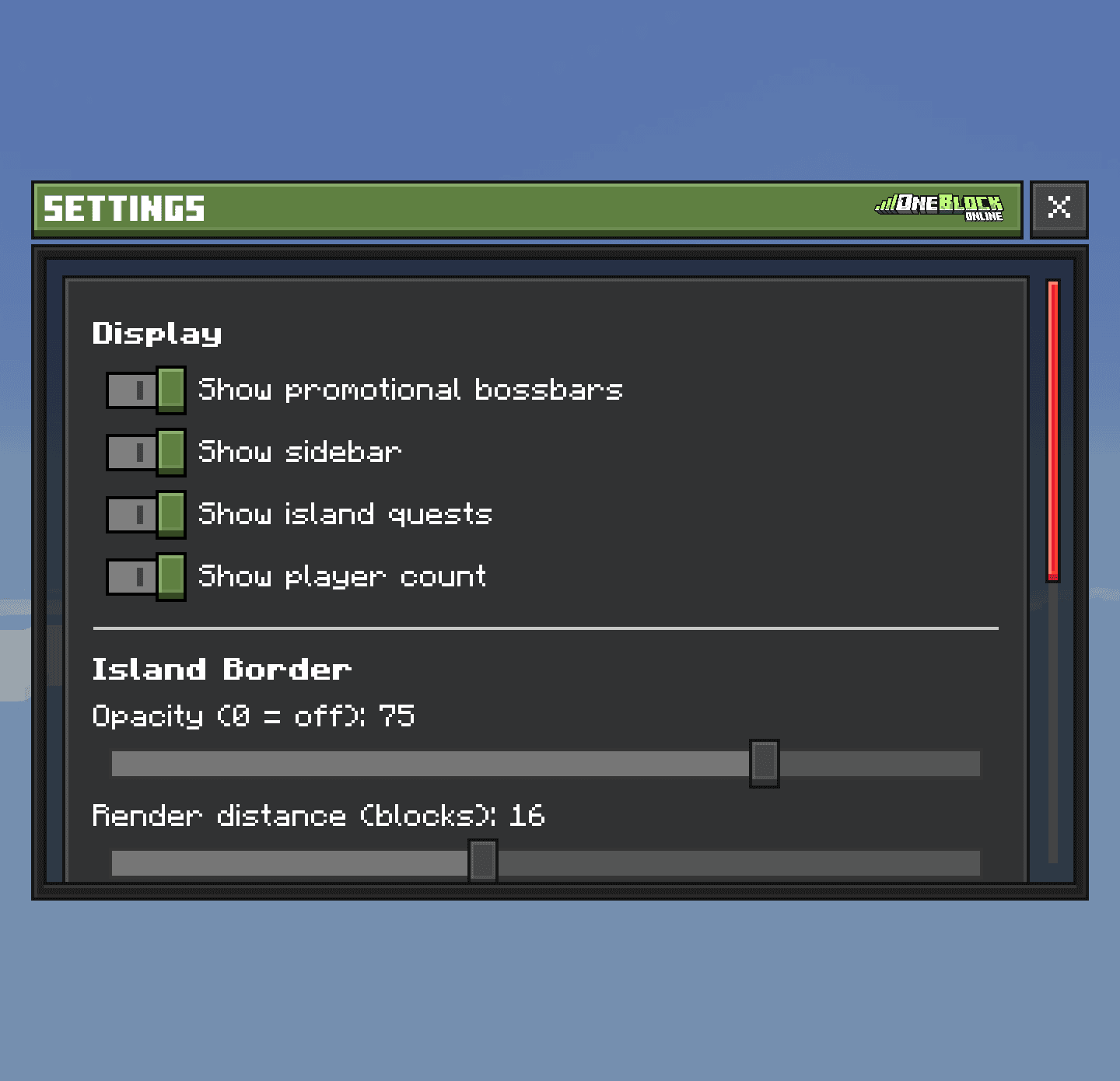
Display
| Option | What it shows |
|---|---|
| Show promotional bossbars | Store offers at the top of the screen |
| Show sidebar | The panel on the right: island, level, Fly Time and more |
| Show island quests | Your island quests |
| Show player count | How many players are online |
All of these start switched on.
Island Border
- Opacity is how see-through the border wall is. Set it to 0 to hide the border.
- Render distance is how close you must be before the border appears.
Announcements
These are the chat messages about other players' big catches, drops, store buys and Discord links. Turn off the ones you don't want to see.

Совет
Too many messages while you grind? Turn off announcements here instead of ignoring chat.Combat numbers
Type /cesettings to open Custom Enchant Settings. Here you can switch on damage numbers over mobs, your damage stats, and timers for your custom enchants. They all start switched off.
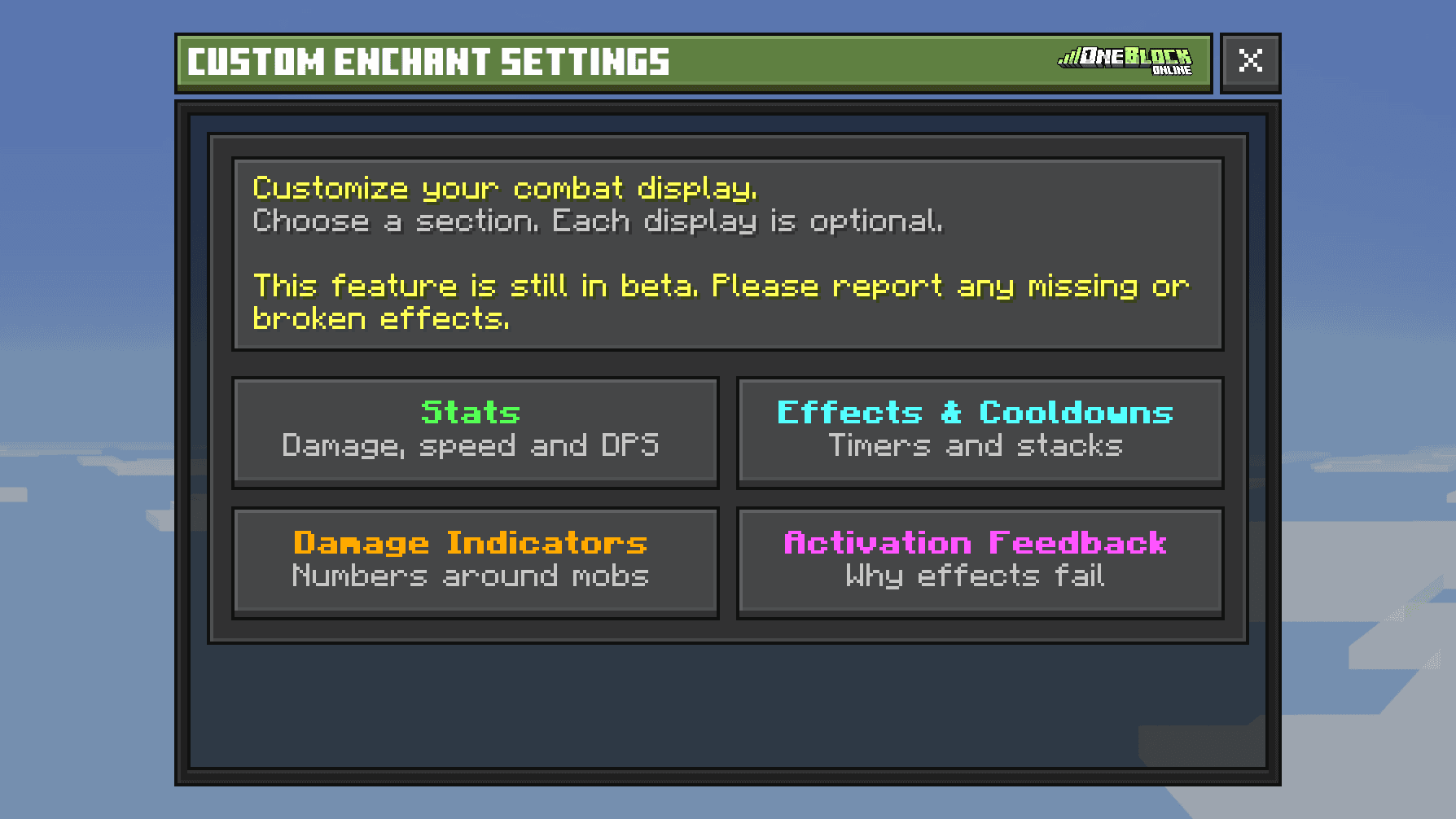
| Section | What you can turn on |
|---|---|
 Stats | Your damage, speed and damage per second |
 Effects & Cooldowns | How long until each enchant works again |
 Damage Indicators | Coloured numbers when you hit a mob |
 Activation Feedback | A message when an enchant can't work, and why |
Damage numbers over a mob
Скриншот скоро будет
What the damage number colours mean
| Colour | Kind of hit |
|---|---|
| White | Normal hit |
| Orange | Critical hit |
| Cyan | Enchant |
| Purple | Buff |
| Green | Pet |
| Orange-red | Ability |
| Grey | Blocked damage |
Only you see your own damage numbers. You can also change their size and how long they stay.